What Is Flex IPTV?
Flex IPTV has been around since 2016, making it one of the longer-standing IPTV player apps you will find on the market today. While many players come and go, Flex has stuck around because it does the core job well: it takes your playlist and plays your channels without getting in the way. If you are looking for a solid IPTV UK service companion app, it is well worth knowing about.
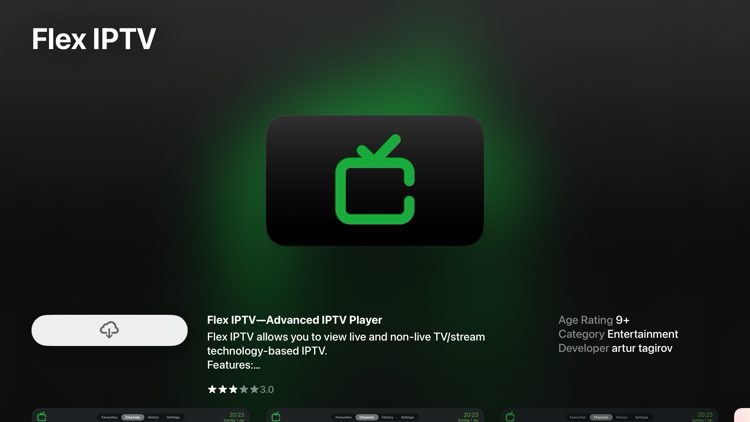
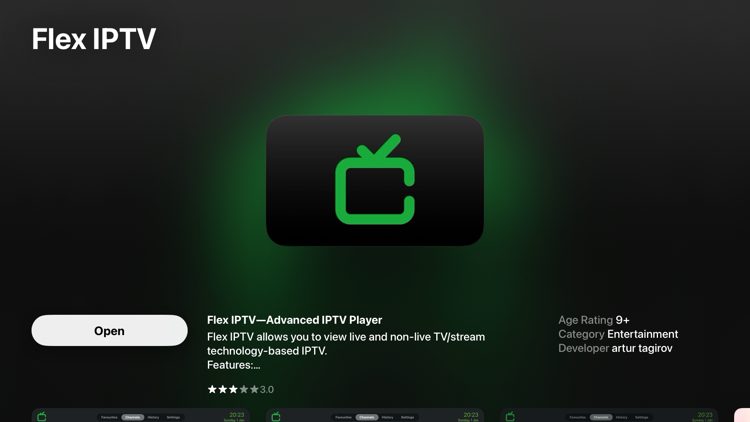
The app is built primarily for Apple devices. You can find it on the Apple App Store for iPhone, iPad, Mac, and Apple TV, which makes it a natural first choice for anyone in the Apple ecosystem. There is also an Android version available on Google Play, so Android TV box and phone users are not left out either.
One thing worth being clear about from the start: Flex IPTV is purely a player. It does not supply channels, movies, or any content of its own. You bring your own M3U playlist URL or Xtream Codes credentials from your subscription, and the app handles playback. Think of it as a media player rather than a streaming service in itself.
Key Features of Flex IPTV
Flex IPTV packs in a respectable feature set for a freemium app. Here is what you get when you install it.
Playlist Support
The app handles both M3U and M3U8 playlist URLs, along with Xtream Codes API login. Both are standard formats used by the vast majority of iptv uk providers, so compatibility is rarely an issue. You can add multiple playlists and switch between them, which is handy if you manage more than one subscription or test different sources.
Remote playlists can auto-update at a set interval, meaning your channel list stays current without you needing to manually refresh it. For UK IPTV subscribers who want their playlist to stay in sync with their provider, this is a genuinely useful feature.
Built-in Video Player
Flex uses a VLC-based engine under the hood, which is one of the most capable open-source media players available. It handles formats like MKV, AVI, MP4, MPEGTS, MOV, RTMP, m3u8, and more. In practical terms, this means streams that would choke other players tend to load and run fine in Flex.
You also get audio track selection, subtitle switching, and a video equalizer. These are small touches but they matter for day-to-day viewing, particularly if you watch content in multiple languages or need subtitles.
EPG and TV Guide
Flex supports XMLTV EPG, which is the standard format used for electronic programme guides. When your iptv subscription uk provider supplies an EPG URL, you can paste it into Flex and get a proper TV schedule grid showing what is on now and what is coming up. For UK viewers used to having a proper guide on cable or satellite, this makes a big difference to how usable the service feels.
Parental Controls
The app includes parental controls that let you hide channels based on their category. This is a practical feature for households where children use the same streaming device. You can lock adult categories behind a PIN without affecting the rest of the channel list.
Recording and History
Flex lets you record live streams, which is not something every IPTV player offers. The auto-reconnect feature handles unstable streams by attempting to reconnect automatically rather than sitting on an error screen. Channel history and a favourites list round out the feature set, making it easy to get back to the channels you watch most.
What Devices Does Flex IPTV Support?
The app covers a solid range of devices, though the core strength is in the Apple ecosystem.
- Apple TV (requires tvOS 17.0 or later)
- iPhone and iPad (iOS)
- Mac (macOS)
- Android phones and tablets
- Android TV and TV boxes
The Apple TV version has historically been the most popular, and the tutorials and guides you will find online tend to focus on that platform. That said, the Android version is actively maintained and received an update as recently as March 2026, so it is not being neglected.
If you are an Amazon Firestick user, Flex is not natively available on the Amazon Appstore. You would need to sideload the Android APK, which is a bit more involved than a standard install. For Firestick users, there are other players that install more straightforwardly, though Flex does work if you are comfortable with the sideloading process.
Free vs Pro: Is It Worth Paying?
Flex IPTV operates on a freemium model. The free version works and gives you access to all the core playback features, but it shows adverts. The Pro version removes the ads, unlocks faster channel switching, and enables automatic playlist updates.
Pricing sits at around $4.99 per platform on iOS and tvOS, which means separate purchases if you want the ad-free experience on both your iPhone and your Apple TV. That is a minor frustration some users raise, though one-time purchases rather than subscriptions tend to be well received overall.
For most UK viewers who just want to watch their channels without interruption, the Pro upgrade is worth it. The faster channel switching alone makes browsing live uk iptv channels noticeably more fluid. The free version is perfectly reasonable for trying the app before committing.
The app scores 4.4 out of 5 on the Apple App Store, which is a solid rating for an IPTV player. Positive reviews consistently mention reliability and the fact the app rarely crashes, even during extended viewing sessions with rapid channel switching.
How to Set Up Flex IPTV with Your UK Subscription
Getting Flex working with a british iptv subscription takes around three to five minutes once you have your credentials to hand. Here is a full walkthrough for both setup methods.
Method 1: M3U Playlist URL
This is the simpler of the two methods and works well for most users.
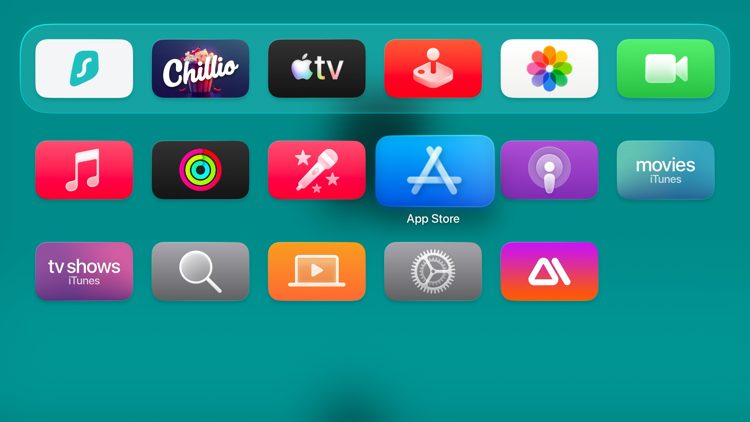
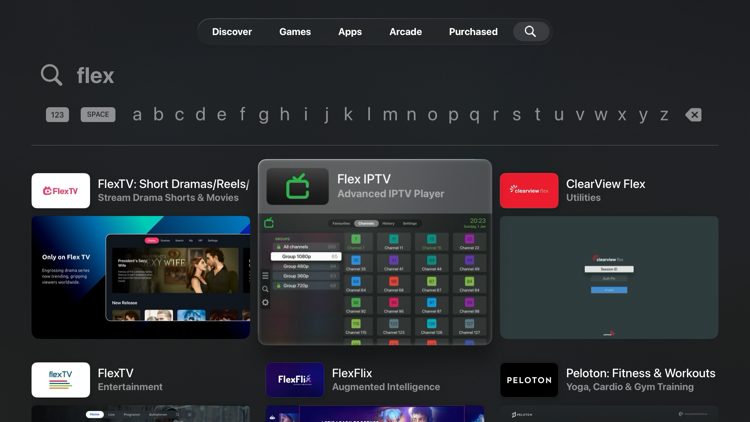
- Download Flex IPTV from the App Store (or Google Play on Android) and open it.
- From the main screen, go to Settings and look for the option to add a playlist.
- Select M3U URL as your source type.
- Paste in the M3U URL from your provider. This will have been sent to you in your welcome email when you subscribed.
- If you have an EPG URL, add that in the settings too. This activates the TV guide.
- Save your settings and return to the main screen. The app will fetch your playlist and populate the channel list automatically.
- Navigate to the Channels tab and your uk iptv channels will be ready to watch.
Method 2: Xtream Codes API
Xtream Codes is a more dynamic login method where your player connects directly to a server using a username and password. Most quality UK providers support this.
- Open Flex IPTV and go to Settings, then choose to add a new playlist.
- Select the Xtream Codes or XC Login option.
- Enter your Server URL, Username, and Password exactly as provided by your subscription service. The server URL sometimes includes a port number at the end, such as
:8080, so include that if it is part of your credentials. - Tap connect or save. The app will authenticate and pull down your full channel list, including any VOD categories your subscription includes.
- Your channels will now appear in the live TV section, organised by category.
For a more detailed walkthrough on getting started with any IPTV player, the IPTV setup guide on this site covers the process across multiple apps and devices.
Tips for Getting the Best Streaming Quality
The player itself is only part of the equation. A few practical steps can make a real difference to how smoothly your streams run.
Connection and Hardware
- Use a wired ethernet connection where possible. This is particularly worth doing on Apple TV and Android TV boxes, since it removes the variability of Wi-Fi entirely. For live sports and 4K streams, a wired connection makes a noticeable difference.
- If Wi-Fi is the only option, use the 5 GHz band rather than 2.4 GHz. It handles more bandwidth and suffers less interference from neighbouring networks.
- For 4K streams, a minimum of 25 Mbps download speed is generally recommended. Most UK broadband connections handle this easily, but congested home networks during peak hours can cause drops.
App Settings
- Enable hardware acceleration in Flex's player settings. This offloads video decoding to your device's graphics chip, which reduces buffering and CPU strain.
- Set the buffer size to somewhere between 10 and 15 seconds. A slightly larger buffer absorbs momentary network hiccups without causing a visible interruption to playback.
- If a particular stream struggles in Flex's built-in player, try switching to an external player. Flex supports this and sometimes an alternative player handles specific stream formats better.
- Keep the app updated. Recent releases have included improvements to logo loading performance and memory usage, and staying current means you benefit from those fixes.
Playlist Management
- Use the favourites feature to bookmark the channels you watch regularly. This saves hunting through a long channel list each time you open the app.
- If your provider supplies an EPG URL, always add it. The difference between using Flex with and without a working TV guide is significant in terms of day-to-day usability.
- Enable auto-update for your playlist so it refreshes automatically when your provider pushes changes. This keeps your channel list current without any manual intervention.
M3U vs Xtream Codes: Which Should You Use?
If your provider offers both options, it is worth understanding the difference so you can pick the better one for your setup.
An M3U playlist is a static file containing a list of stream URLs. It is simple to use and works with every IPTV player, but it does not update automatically unless you set a refresh schedule. If your provider changes stream addresses, an old M3U URL may stop working until you get a new one.
Xtream Codes is different. Rather than a static file, it is a live connection to a server that generates your playlist on demand using your login credentials. This means the list is always current, channel categories tend to be better organised, and your login can be managed by the provider if issues arise. For watch uk tv online purposes, Xtream Codes generally gives a more reliable long-term experience.
That said, M3U is perfectly fine for getting started quickly or for testing a new service before you commit. Many UK subscribers use M3U initially and then switch to Xtream Codes once they are satisfied with the service.
Flex IPTV: Pros and Cons at a Glance
What It Does Well
- Long track record of reliability since 2016
- Strong Apple TV support with native App Store availability
- VLC-based player handles a wide range of stream formats
- EPG support for a proper TV guide experience
- Parental controls for family-friendly viewing
- Live stream recording built in
- Regular updates and active maintenance into 2026
- One-time purchase model rather than a recurring subscription for the app itself
Things to Bear in Mind
- The free version shows adverts, which can be intrusive
- iOS and tvOS require separate purchases, which some users find frustrating
- Not natively available on Amazon Firestick without sideloading
- Closed captions turn off between channels and need to be re-enabled manually each time
- Some users report occasional crashes on older Apple TV hardware
Is Flex IPTV the Right Player for You?
For Apple TV users in particular, Flex IPTV is one of the most dependable choices available. It has been maintained consistently for nearly a decade, the playback engine is robust, and the feature set covers everything a typical UK viewer needs. The 4.4-star App Store rating reflects real user satisfaction rather than just positive press.
Android users have solid options too, though if you are on Firestick the extra step of sideloading is a genuine inconvenience compared to apps that install directly from the Amazon Appstore.
The bottom line is that Flex IPTV is a dependable, well-tested player that works well with quality UK subscriptions. Pair it with a good M3U playlist or Xtream Codes login, set up your EPG, and you have a live TV setup that competes comfortably with cable or satellite for a fraction of the cost.
If you want to see how it all comes together with a quality subscription behind it, you can try ApolloTV free and get your Flex IPTV setup running within minutes. A well-structured UK playlist makes an enormous difference to the experience, and testing it before you pay is always the smart approach.